





Key takeaways:
- Assign ButterflyMX Security Cameras to specific access points in the ButterflyMX OS to find entry footage faster.
- Once connected, camera footage can be reviewed from the “Door Releases” tab in the ButterflyMX OS.
- This setup gives you more visibility into who accessed your property, when, and where.
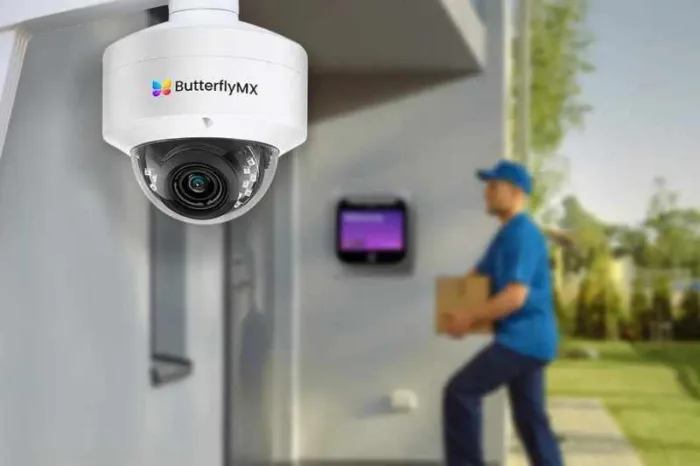
When your ButterflyMX Security Cameras are connected to specific doors, gates, or other access points, it’s easier to find the footage you need.
Instead of manually searching through camera recordings, you can review video and photo logs tied to specific door release events in the ButterflyMX OS. So, your team can quickly see who accessed the property, where they entered, and when the event happened.
In this guide, we’ll show you how to assign an access point to a ButterflyMX Security Camera from the ButterflyMX OS.
Navigate this guide:
- Why connect cameras to access points?
- How to assign an access point to a ButterflyMX Security Camera
- Make access events easier to review
Why connect cameras to access points?
Your access control system tells you when an entry event happens. Your security cameras show you what happened at that moment.
By linking ButterflyMX Security Cameras to specific access points, you bring those two pieces of information together. When someone unlocks a door or gate, your team can easily find and review the corresponding photo or video from that entry event.
This is especially helpful when you need to:
- Review specific door release events
- Confirm who entered the property
- Investigate access activity more efficiently
- Save time searching through footage
- Improve visibility across doors, gates, and shared entrances
How to assign an access point to a ButterflyMX Security Camera
Follow these steps to connect a camera to a specific access point:
- Log in to the ButterflyMX OS
- Go to “Camera Management”
- Open “Camera Hardware”
- Edit the camera
- Review door release footage
1. Log in to the ButterflyMX OS
First, go to butterflymx.com and click “Sign In.”
Then, select “Admin” and enter your email address and password.
Once you’re logged in, select the building you want to manage.
2. Go to “Camera Management”
From the left-hand side of your dashboard, click “Camera Management.”
In this section, you’ll see the cameras currently installed at your building.
3. Open “Camera Hardware”
Next, click “Camera Hardware” to view your list of cameras. In the “Access Points” column, you’ll see whether each camera has already been assigned to an access point.
If a camera has not been assigned yet, you’ll see a dash. If it has already been assigned, you’ll see the corresponding access point number.
4. Edit the camera
Find the camera you want to connect to an access point. Then, click “Edit.”
From there, choose “Select Access Point” and pick the specific door, gate, or access point you want to link to that camera.
Then, click “Save.”
5. Review door release footage
Once the access point is assigned to the camera, you can review footage for door release events at your building.
To view this footage, go to “Door Releases” in the left-hand menu.
Then, select the specific entry event you want to review. Under the log, you’ll see a photo or short video of the person entering the building. If video is available, press “Play” to review the recording.
Make entry activity easier to review
Connecting ButterflyMX Security Cameras to your access points gives your team a faster, clearer way to review entry activity.
With cameras linked to doors and gates, you can quickly find the footage tied to each entry event without manually searching through recordings. As a result, your property staff can save time and gain more visibility into who accessed the property, when they entered, and where they came in.
Do you need help assigning cameras to access points? Contact the ButterflyMX Support Team for assistance.
Get your free quote!
Fill in the form below, and we'll email you right back.
Want a free quote?
Fill in the form below, and we'll email you right back.
You’ll be redirected shortly...