





Key takeaways
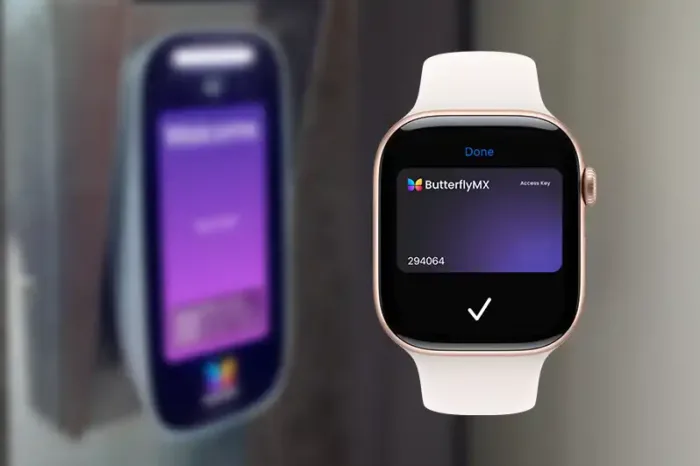
- Use the resident key in Apple Wallet to unlock ButterflyMX-controlled doors and gates with a simple tap using your iPhone or Apple Watch.
- Manage your key in the ButterflyMX mobile app and sync it across devices.
- Setup takes less than a minute, and you can keep using the app while it completes in the background.
ButterflyMX makes it easy to unlock doors and gates with just a tap using resident key in Apple Wallet on iPhone or Apple Watch, eliminating the need to dig for keys or open an app. This makes accessing your property faster, easier, and more secure than ever. This guide walks you through setting up your key in the ButterflyMX mobile app, ensuring seamless access to your property with a tap.
How to create a resident key
- Open the ButterflyMX app
- Navigate to the ‘Account’ section and select ‘Manage Wallet Pass’
- Tap ‘Add to Apple Wallet’
- Follow the prompts
- Use your key
Step 1: Open the ButterflyMX app
Open the ButterflyMX app on your iPhone.
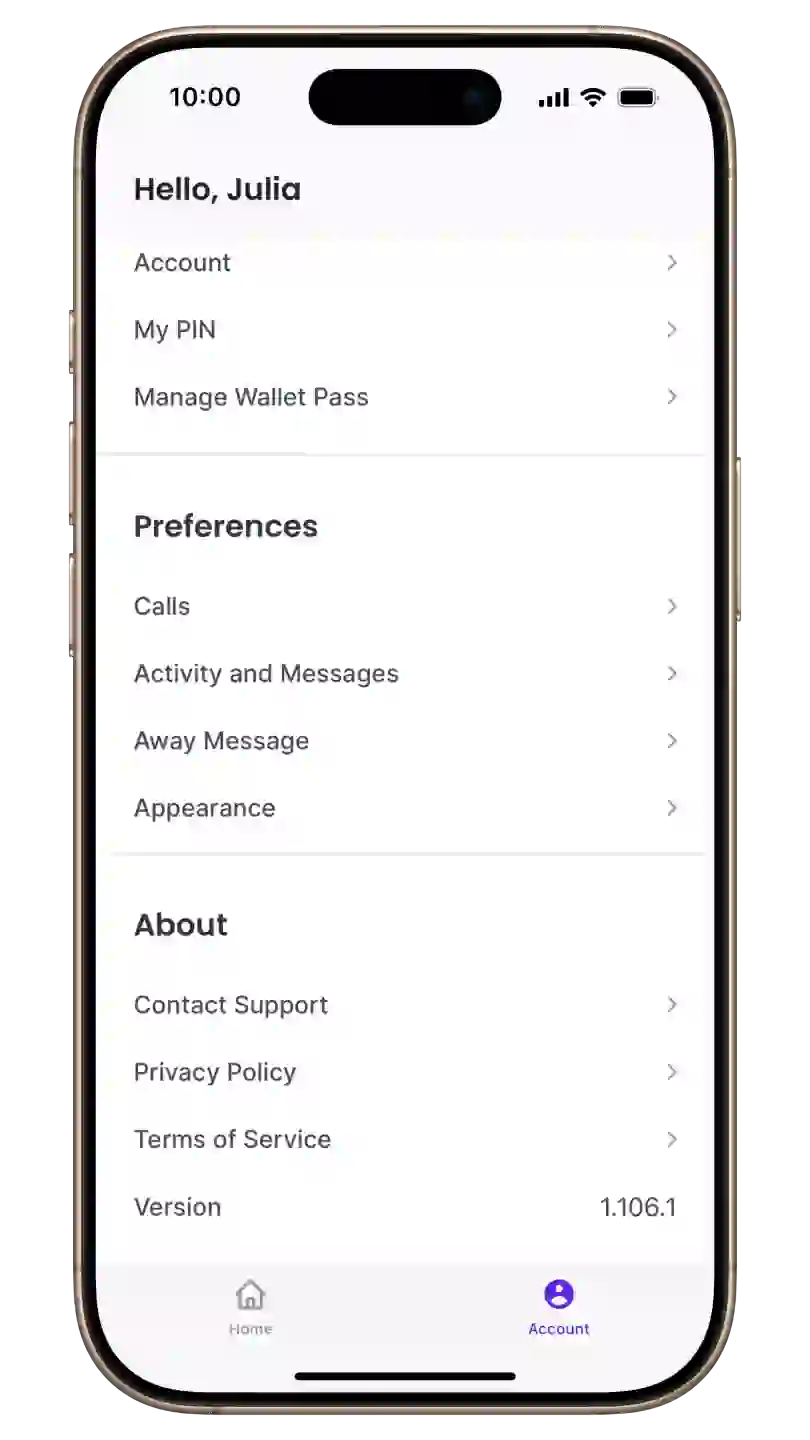
Step 2: Navigate to the ‘Account’ section and select ‘Manage Wallet Pass’
Navigate to the ‘Account’ section in your ButterflyMX mobile app and select ‘Manage Wallet Pass’.
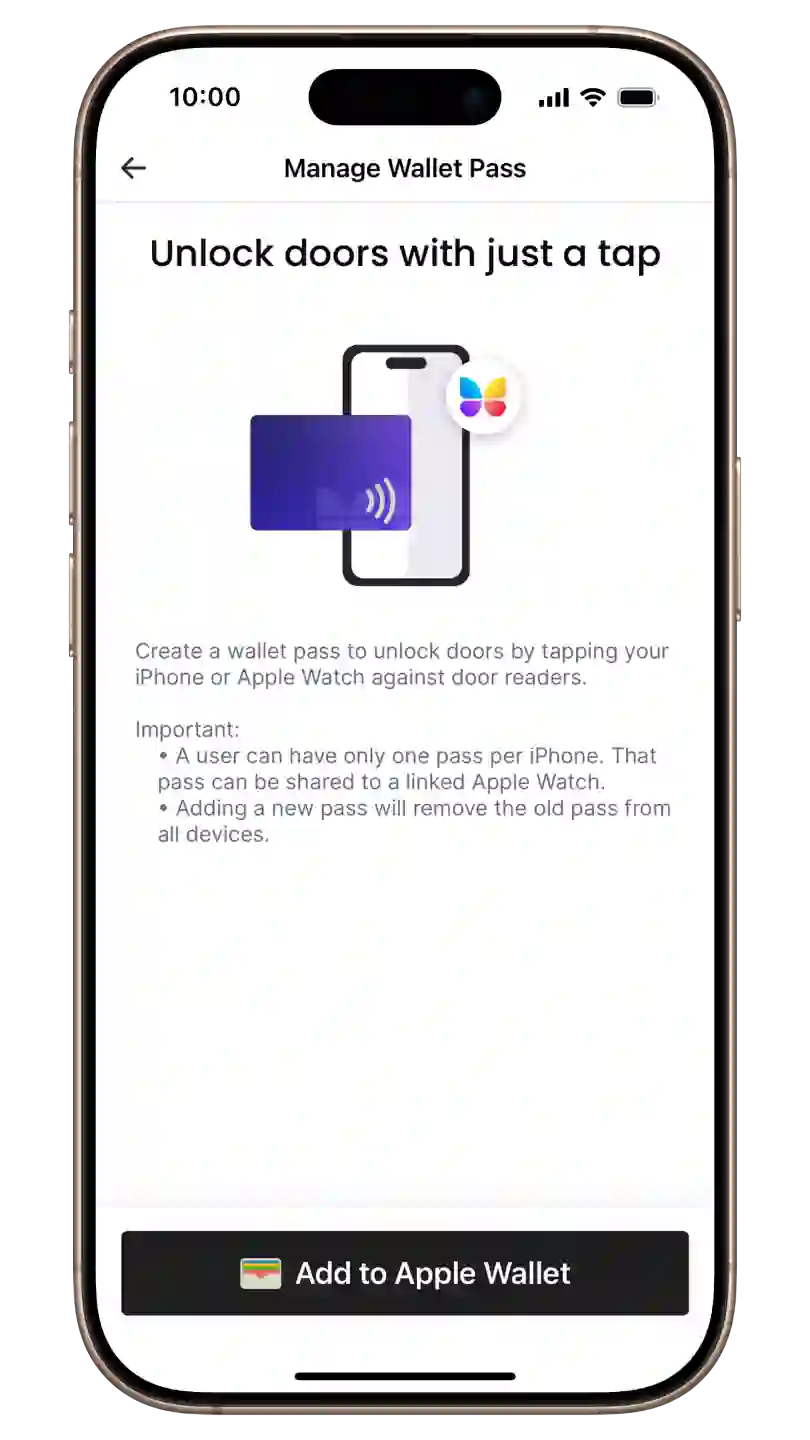
Step 3: Tap ‘Add to Apple Wallet’
Tap ‘Add to Apple Wallet’ and wait for your key to be generated. This process might take up to 60 seconds. Keep the app open during this process.
Note: Each user can have only one key per iPhone. This key can be shared with a linked Apple Watch. Adding a new key will remove the old key from all devices.
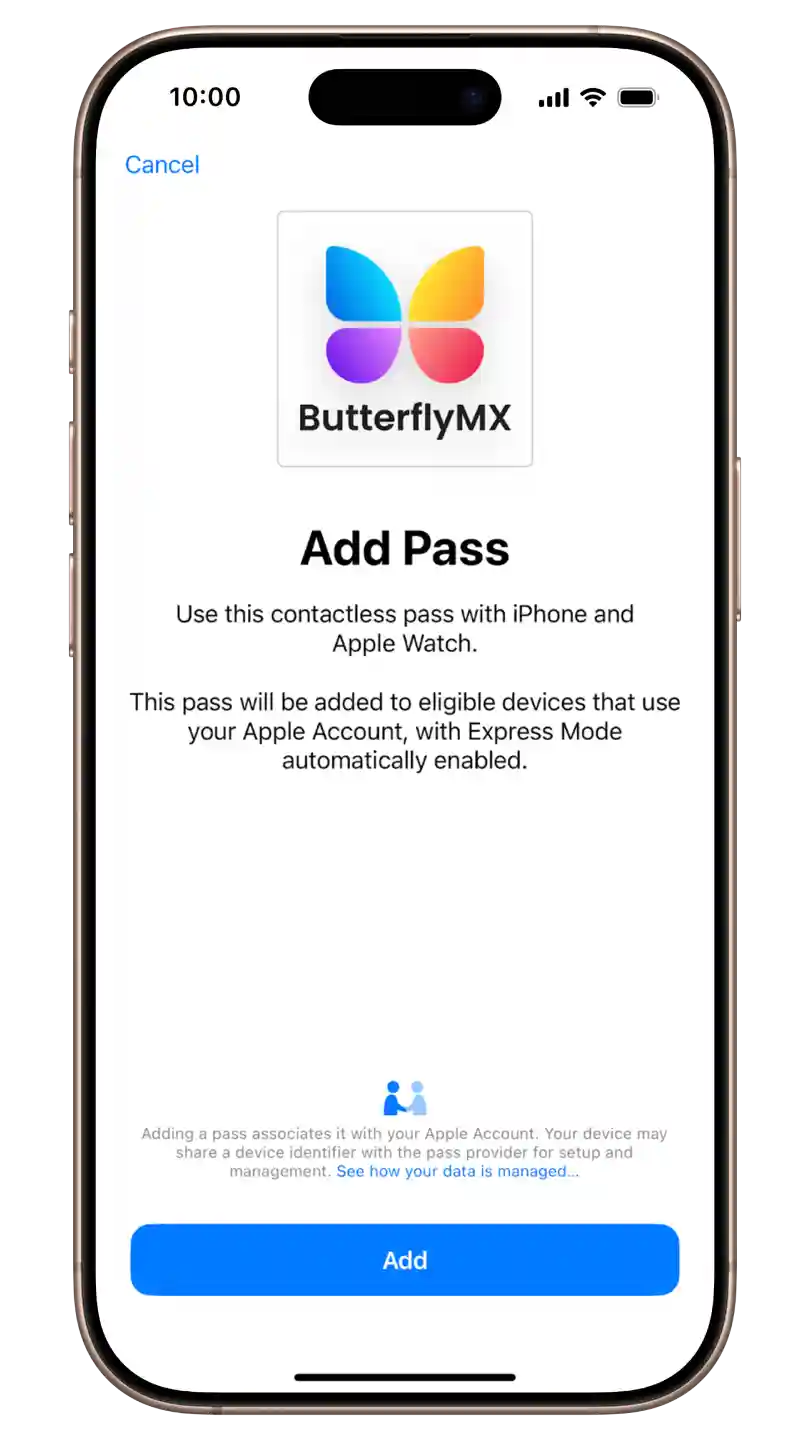
Step 4: Follow the prompts
Follow the prompts to add your key to your Apple Wallet.
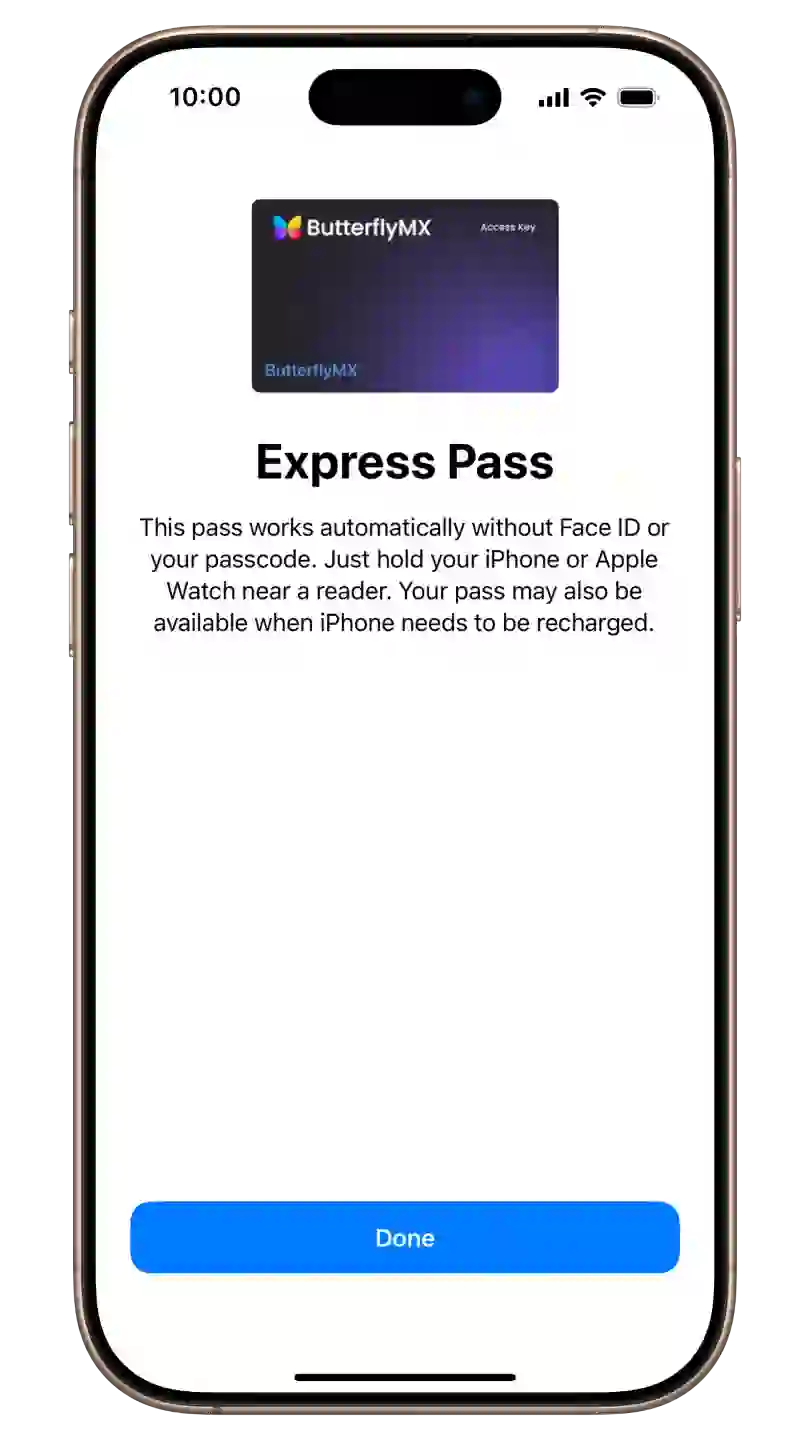
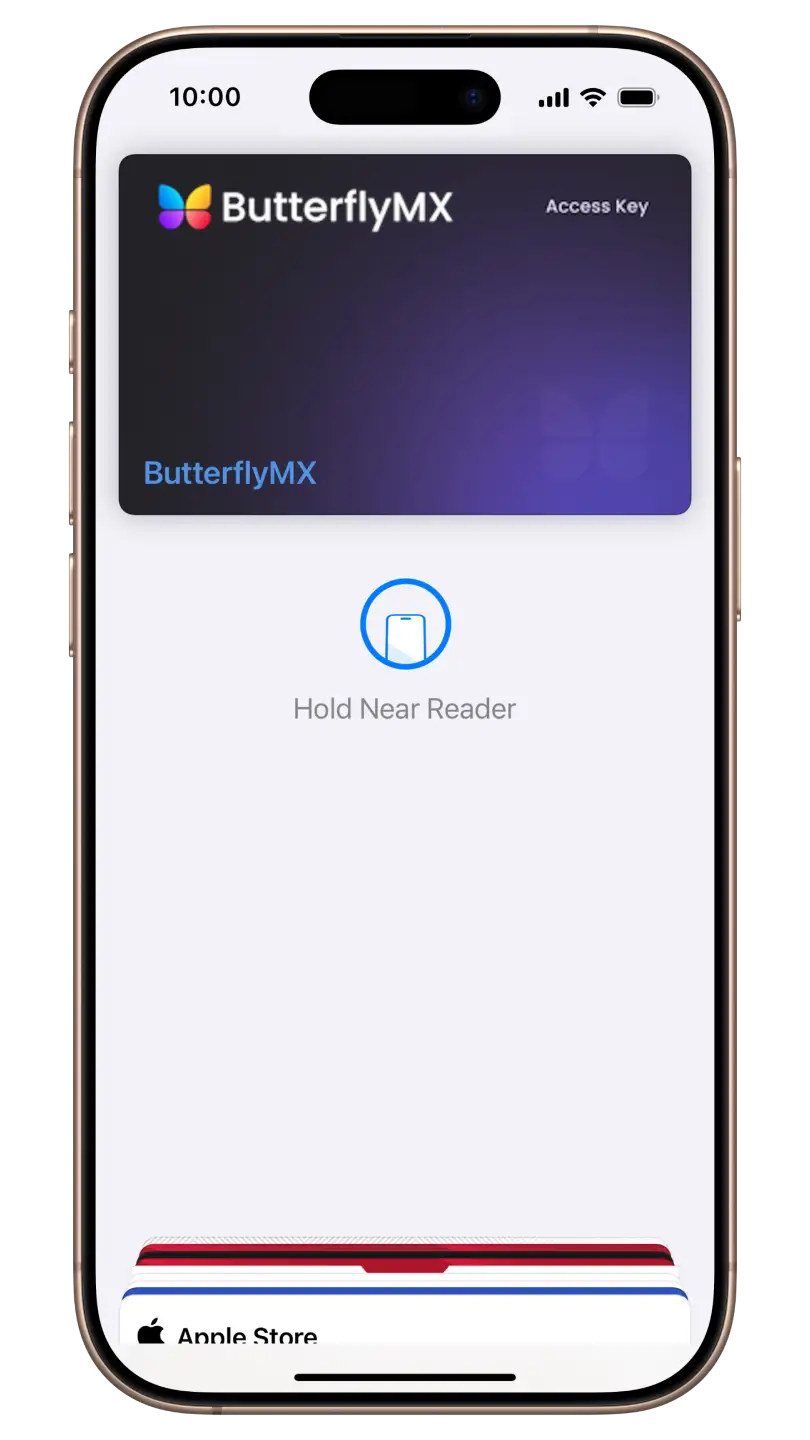
Step 5: Use your key
You’re now ready to use your key! Your key is automatically shared with your linked Apple Watch, so you can use either device to gain access. Simply hold your iPhone or Apple Watch up to the ButterflyMX reader to unlock your door or gate.
Get your free quote!
Fill in the form below, and we'll email you right back.
Want a free quote?
Fill in the form below, and we'll email you right back.
You’ll be redirected shortly...